
This article only shows the file and log file paths for MFA Server versions that are 4.9.5.1 or newer. If your MFA server is not up to version 4.9.5.1 or later, it is strongly recommended to upgrade. Please see our server upgrade information page for more information.
Logging Output Path
C:\ProgramData\IdentityAutomation\MFA Server\
Enabling MFA Server Logs
Enabling all 4 of the server logs are not always necessary. Depending on the issue at hand, you may only need one to two files changed instead of all four.
| App | Details | Log File Name |
|---|---|---|
| WebSite | Issues with the ONE portal | MFAWebSiteLog.log |
| ServiceSite | Issues with computer client communications, connections and activity | MFAServiceSiteLog.log |
| RestServices | Issues with mobile communications, connections and activity | MFASyncServicesLog.log |
| API | Issues with the Self Service Portal | MFApiLog.log |
Steps to Enable
-
Open Notepad (or other text editor) as an administrator.
-
From the editor, open the file(s):
C:\Program Files\Identity Automation\RapidIdentity MFA\WebSite\web.configC:\Program Files\Identity Automation\RapidIdentity MFA\ServiceSite\web.configC:\Program Files\Identity Automation\RapidIdentity MFA\RestServices\web.configC:\Program Files\Identity Automation\RapidIdentity MFA\Api\web.config
-
In each file, use Ctrl+f to find "switchValue".
-
By default, this setting is "Off". Update the value to "All".
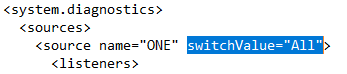
-
Save the file.
-
Perform an iisreset.