
There are 2 ways to enable the MFA client logs. The first method enables logs on just the one computer, and it's done manually. The second method enables the logs through your MFA policy and enables the logs on all MFA clients that sync with that MFA policy.
Logging Output Path
C:\Program Files\2FA\ONE\Client\logs\
Enable Logging Manually
-
On the target client computer, navigate to
Computer\HKEY_LOCAL_MACHINE\SOFTWARE\Foray. -
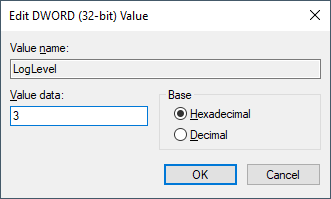
Create a new DWORD value called "LogLevel".
-
Set LogLevel's value to 3 (this level captures ALL Information, Errors, and Debug Trace).
-
Open Task Manager.
-
Under Processes, scroll down and locate slmonitor (tip: pressing 's' on your keyboard will jump you straight to the s-section of the processes). When you locate slmonitor, click to highlight it and click End Task.
-
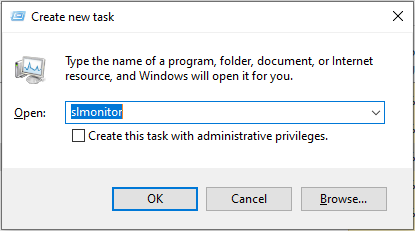
Back in the top left-hand corner, click File > Run new task and click OK.
Disable Logging Manually
To turn the logs back off, set the registry LogLevel value to 0 and restart the slmonitor service.
If your MFA policy has logs enabled , manually disabling or deleting the registry value will not have an affect. This is because the client will re-receive the setting at the next server synchronization.
Enable Logging with MFA Policy
-
In your MFA Portal, log in and go to the Policies tab.
-
On the left-hand side, click on "View All Policies".
-
This will bring up all of your MFA policies. Next to the policy/group of computers you wish to enable MFA client logs on, click "Edit".
- Note: If you have more than the one policy, it's important to know that the GlobalDefault policy will not enable logs for other policies. The other policies will have to be set separately.
-
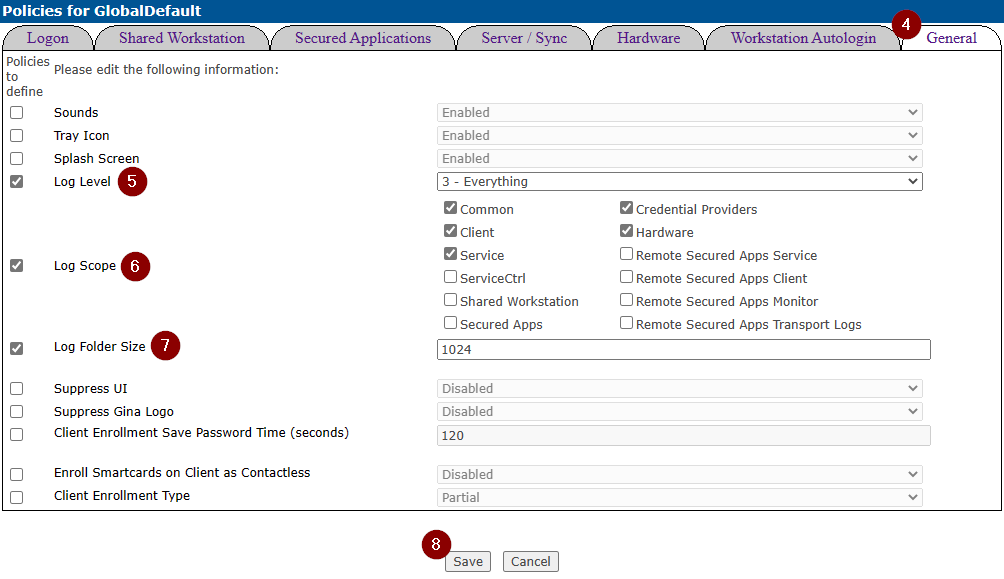
In the new policy editor window, click on the General tab.
-
Set Log Level to "3 - Everything".
-
(Optional) Check Log Scope and select the activity you wish to capture. Typical log gathering consists of the options marked in the example.
-
(Optional) Check Log Folder Size and set the value to limit the size of your log file(s). The default is 1024 kb.
-
Finally, click Save when finished. The clients will automatically synchronize and pull their new instruction to begin logging over time.
- Note: The default auto-synchronization time is 2 hours.
Disable Logging with MFA Policy
If you use an MFA policy to enable client logging, you must use the policy to turn them off.