Deleting a user from your MFA environment is a two-step process: deactivation and deletion. When deactivating and deleting a user, this will free up a user license for being able to add new users, and disassociate any authentication hardware (contactless cards or FIDO tokens), also making them available for reuse with new users.
Deactivate Users
Users must be deactivated before they can be deleted. Users cannot be deleted from any other user state.
After deactivation, a user account can only be placed in Steady State or New Credential. Users in a deactivated state will not be able to log into the User Admin Portal.
- In the Admin Portal, under the Users tab, look up the user to be deactivated and/or deleted.
- Click on their name.
-
Click Edit in the bottom-left.
-
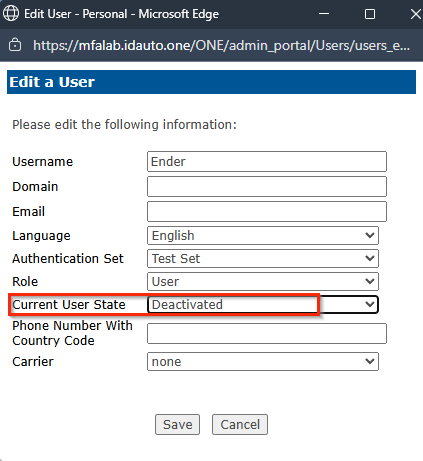
In the pop-up window set the User State to "Deactivated".
-
Click Save.
-
Delete Users
The Delete Users search only returns users in the deactivated state.
- Under the Users tab, in the menu on the left-hand side, click to Delete Users.
- Search for the deactivated user.
- Click their name in the search results.
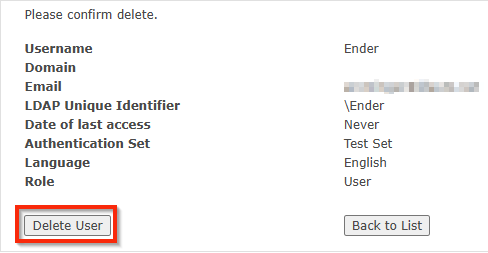
- You will be brought to a new page that asks to confirm their deletion. Click Delete User.