
User reports can be used to help determine what users have not yet enrolled, see a list of “locked-out” users in the system, or get a general eagle eye's view of user statuses. They allow for administrators to generate and export reports to CSV files, which can be done for (user) State, Authentication Set, or Role.
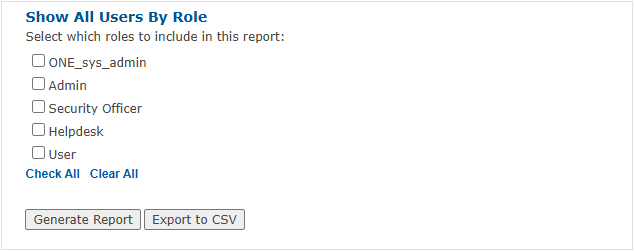
The process to generate the three different report types is identical: select the desired criteria and click "Generate Report" or "Export to CSV".
Generating Reports
By State
Every user state a user can be in is available under By State. If you have lockouts, according to your admin dashboard in the portal, this is where you can quickly find those users.
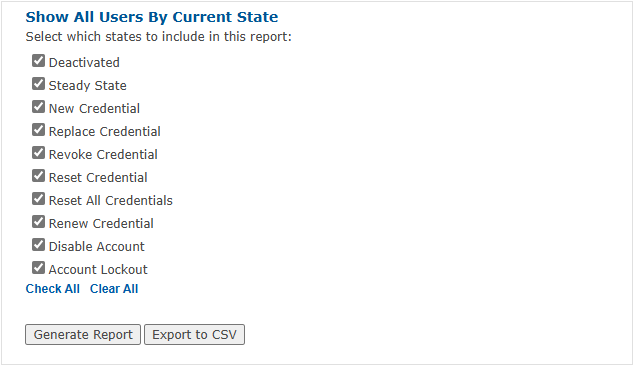
Generate Report
The Generate Report report button will create a clickable list in the same window. Usernames in this report can be clicked on and will take you to their respective User Information Page.
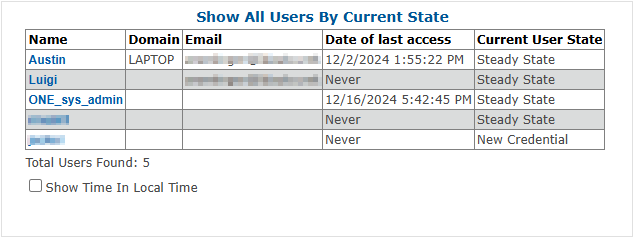
Export to CSV
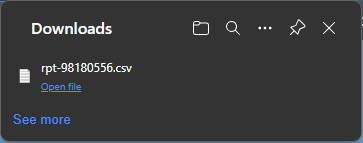
The Export to CSV button will create a downloadable .CSV file that can be saved to your device.
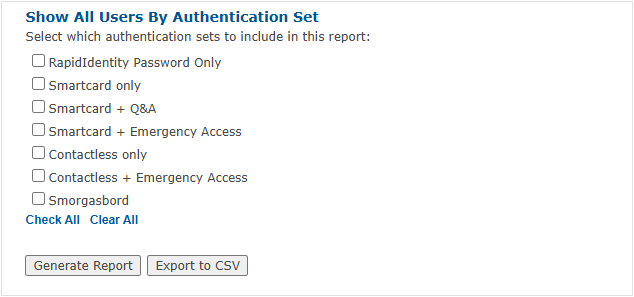
By Authentication Set
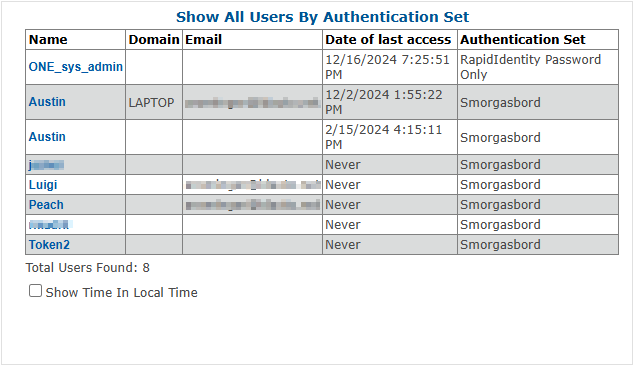
Authentication Set reports return users based on their assigned authentication set.
By Role
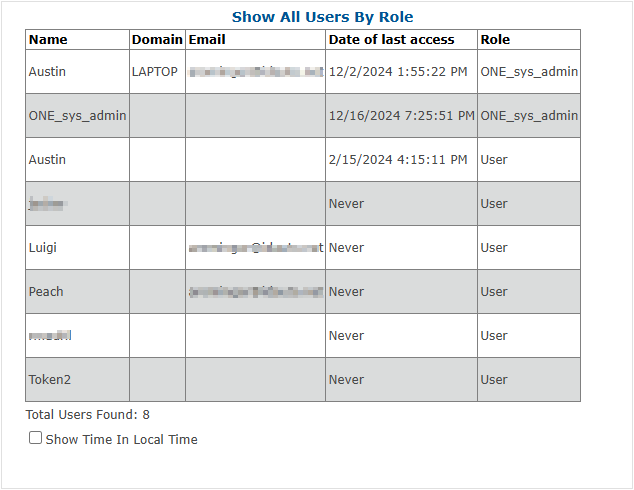
Role reports will return users based on their assigned MFA role. Roles refer to and affect the level of access a user has while in the Admin Portal, not their login abilities to MFA clients.
Known Issues
TWOFA-449 – Report Buttons Bug
The "Check All" and "Clear All" buttons do not work (for any of the Report pages).
Workaround: All boxes must be checked (✓) manually.
Status: Resolved in MFA Server v4.9.9.1
TWOFA-609 – Report Timeout Bug
Organizations with large datasets may experience timeouts when generating reports. There have been reported issues of reports taking too long to generate, resulting in blank screens in the Admin Portal or blank files generated from the "Export to CSV" button.
Workaround: In your SQL management tool, use the SQL query from our Bulk Migrate article to generate a users report. This report can still be copied to Excel or Google Sheets to export as a CSV if needed.